Table of Contents
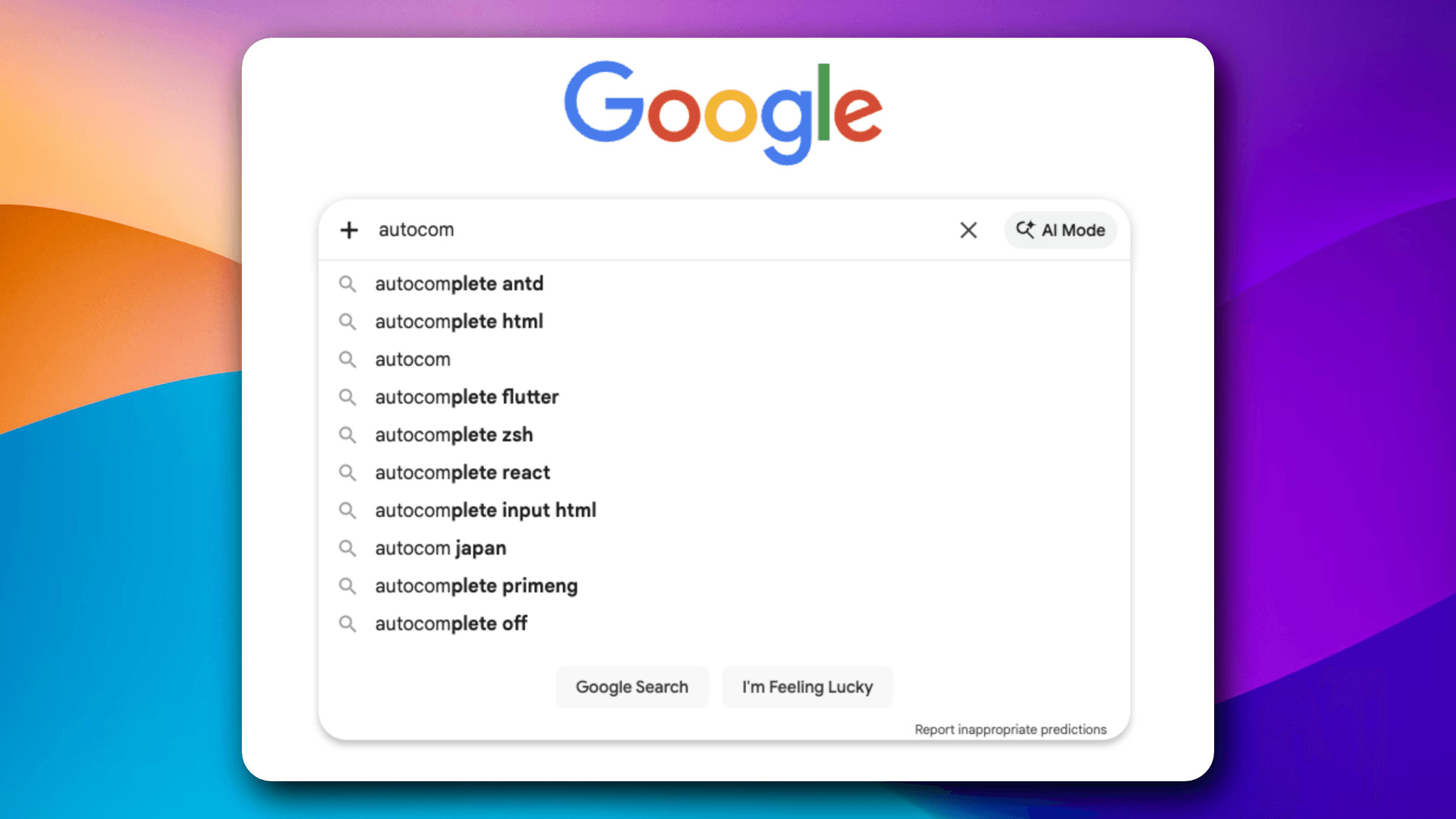
A few months ago, I was asked to design an autocomplete component in a technical interview. The interviewers give me a simple statement: "Design an autocomplete component that shows search suggestions as the user types.". At the first glance, this seems straightforward. But digging deeper reveals many ambiguities.
Today, I will breaks down building an autocomplete component that's might help you ace your next frontend system design interview.
Requirements Exploration
Main use case
Key constraint: A backend API is provided that returns results based on the search query. The component doesn't control server behavior.
Supported search result
Text, image, media for now, but the component should be extensible to support new result types in the future (e.g., users, products, company...).
Solution: The component should support customizable rendering via render callbacks, allowing developers to define how each result type displays.
Device support
All devices: desktop, tablet, mobile. This affects touch target sizes, input attributes, and positioning logic for the results popup.
Functional requirements
- User types in input → results appear in popup
- User selects result → component triggers callback with selection data
- Minimum query length before triggering search (prevent "a", "ab" requests)
- Debouncing to limit API call frequency
- Customizable result rendering (theming, classnames, or render functions)
Non-functional requirements
- Performance: Results appear within 300ms of user stopping typing
- Offline: Graceful degradation when network unavailable (show cached results)
- Memory: Cache doesn't grow unbounded on long-lived pages
- Accessibility: Full keyboard navigation + screen reader support
High-Level Design
The component follows an MVC-inspired pattern where the Controller coordinates data flow between the UI layer and data layer.
                    ┌─────────────────────────────────────┐
                    │         User Interface              │
                    ├─────────────────────────────────────┤
                    │  ┌─────────────┐  ┌──────────────┐  │
                    │  │ Input Field │  │Results Popup │  │
                    │  └──────┬──────┘  └──────▲───────┘  │
                    │         │                │          │
                    └─────────┼────────────────┼──────────┘
                              │                │
                              ▼                │
                        ┌──────────────────────────┐
                        │     Controller           │
                        │ ┌──────────┐ ┌─────────┐ │
                        │ │  Cache   │ │Network  │ │
                        │ │  Manager │ │Handler  │ │
                        │ └──────────┘ └─────────┘ │
                        └──────────┬───────────────┘
                                   │
                                   ▼
                              ┌─────────┐
                              │ Server  │
                              │   API   │
                              └─────────┘
Component responsibilities
Input field
- Captures user keystrokes
- Handles focus/blur states
- Passes search query to Controller
- Manages keyboard interactions (arrow keys, Enter, Escape)
Results popup
- Receives results from Controller
- Renders list of results (customizable via props)
- Handles user selection (click or Enter key)
- Positions itself above or below input depending on available viewport space
Controller
- Debounces user input
- Checks cache before hitting network
- Fetches from server on cache miss
- Manages race conditions when multiple requests are in-flight
- Decides which results to display based on current query
Cache manager
- Stores query → results mapping
- Provides O(1) lookup for cached queries
- Tracks timestamps for staleness detection
Network handler
- Makes HTTP requests to search API
- Tracks in-flight requests by query string
- Implements retry logic with exponential backoff
- Handles request failures gracefully
Server API
- Returns results for given query (black box, outside our control)
- Expected to support query parameter, limit, and pagination
Data Model
Server-originated data
The component receives and stores data from the server API.
Result entity
interface Result {
  id: string;
  type: 'text' | 'media' | 'organization' | 'user' | 'product';
  text: string;
  subtitle?: string;
  image?: string;
  metadata?: Record<string, any>;
}
API response entity
interface SearchResponse {
  query: string;
  results: Result[];
  pagination?: {
    cursor: string;
    hasMore: boolean;
  };
  timestamp: number;
}
Client-only data
Cache entry
interface CacheEntry {
  results: Result[];
  timestamp: number;
  expiresAt: number;
}

type CacheMap = Record<string, CacheEntry>;
Component state
interface AutocompleteState {
  currentQuery: string;
  isLoading: boolean;
  error: string | null;
  isOpen: boolean;
  selectedIndex: number;
  cachedResults: CacheMap;
  inFlightRequests: Set<string>;
}
The inFlightRequests set tracks which queries have pending network requests to prevent duplicate requests for the same query.
Interface Definition (API)
Component props (public API)
The component exposes a configuration-heavy API to support different use cases.
Basic configuration
interface AutocompleteProps {
  // Core functionality
  apiUrl: string;
  numResults?: number;           // default: 10
  minQueryLength?: number;       // default: 3
  debounceMs?: number;           // default: 300

  // Customization (three approaches)
  placeholder?: string;
  theme?: ThemeConfig;           // Least flexible
  classNames?: ClassNameConfig;  // Medium flexibility
  renderResult?: (result: Result) => ReactNode;  // Most flexible
  renderInput?: (props: InputProps) => ReactNode;

  // Event callbacks
  onSelect: (result: Result) => void;
  onInput?: (query: string) => void;
  onFocus?: () => void;
  onBlur?: () => void;
  onChange?: (query: string) => void;

  // Advanced options
  cacheDurationMs?: number;      // default: 1800000 (30 min)
  retryAttempts?: number;        // default: 2
  initialResults?: Result[];     // Shown on focus before typing
}
Why three customization approaches?
- Theme object: Easiest to use, least flexible. Pass
{ textSize: '14px', textColor: '#333' }. - Classnames: Medium flexibility. Developer provides CSS class names for subcomponents.
- Render callbacks: Maximum flexibility. Developer controls the entire rendering logic. This is an inversion of control pattern used extensively in React.
Different products have different needs. E-commerce might only need theming. A social network might need rich result cards with custom layouts, requiring render callbacks.
Server API contract
The component expects the server to expose a search endpoint with this contract:
GET /api/autocomplete/search

Query params:
  q: string          // search query
  limit: number      // max results to return
  cursor?: string    // pagination cursor for infinite scroll

Response:
{
  results: Result[],
  pagination: {
    cursor: string,
    hasMore: boolean
  }
}
The cursor parameter supports pagination if users scroll beyond the initial result set. Most autocompletes don't implement pagination, but stock exchanges or large datasets might need it.
Internal component APIs
Controller → Cache Manager
interface CacheManager {
  get(query: string): CacheEntry | null;
  set(query: string, results: Result[], ttl: number): void;
  has(query: string): boolean;
  clear(): void;
  size(): number;
}
Controller → Network Handler
interface NetworkHandler {
  fetch(query: string, signal: AbortSignal): Promise<SearchResponse>;
  retry(query: string, maxAttempts: number): Promise<SearchResponse>;
  isRequestInFlight(query: string): boolean;
  cancelRequest(query: string): void;
}
The signal parameter allows request cancellation via AbortController, though we rarely use this in practice (explanation in the race conditions section).
Optimizations
Network
Race condition problem
User types "faceb" → request fires → user adds "o" → "facebo" request fires → "facebo" returns first → "faceb" returns later → wrong results displayed.
The server doesn't guarantee response order matches request order. An earlier request can complete later than a subsequent request.
Solution 1: Timestamp-based filtering
Attach a timestamp to each request. Only display results from the latest request (not the latest response).
let latestRequestTime = 0;

async function search(query: string) {
  const requestTime = Date.now();
  latestRequestTime = requestTime;

  const results = await fetchResults(query);

  if (requestTime === latestRequestTime) {
    displayResults(results);
  } else {
    // Discard outdated response
  }
}
Solution 2: Query-keyed cache (preferred)
Store all responses in a Map keyed by query string. Display results matching the current input value.
const responseCache = new Map<string, Result[]>();

async function search(query: string) {
  const results = await fetchResults(query);
  responseCache.set(query, results);

  // Always display results for current input value
  if (inputValue === query) {
    displayResults(results);
  }
}
Why solution 2 is better:
This benefits users who make typos. User types "foot" → "footr" (typo) → deletes "r" → "foot". The second "foot" query displays instantly from cache.
Why we don't abort requests:
It's tempting to use AbortController to cancel outdated requests. Don't. The server already processed the request and generated the response. Aborting wastes that work. Better to cache the response for when the user deletes characters (common on mobile).
If debouncing is enabled, this mainly benefits users who type slower than the debounce duration or who pause mid-query.
Performance
Cache design trade-offs
Cache structure is the most interesting technical decision in autocomplete components. Three approaches, each with distinct trade-offs.
Approach 1: Query → results map (naive)
const cache = {
  'fa': [
    { type: 'organization', text: 'Facebook', subtitle: 'Meta' },
    { type: 'text', text: 'Family google' },
    { type: 'text', text: 'facebook library' },
  ],
  'fac': [
    { type: 'organization', text: 'Facebook', subtitle: 'Meta' },
    { type: 'text', text: 'facebook ads library' },
    { type: 'text', text: 'facebook sign in' },
    { type: 'text', text: 'face wash fox' },
  ],
  'face': [
    { type: 'organization', text: 'Facebook', subtitle: 'Meta' },
    { type: 'text', text: 'facebook ads library' },
    { type: 'text', text: 'facebook sign in' },
    { type: 'text', text: 'face wash fox' },
    { type: 'text', text: 'face pull' },
  ],
};
✅ O(1) lookup time
❌ Massive data duplication (Facebook appears in every entry)
❌ Memory explodes if caching every keystroke
Approach 2: Flat results list
const results = [
  { type: 'organization', text: 'Facebook', subtitle: 'Meta' },
  { type: 'text', text: 'Family google' },
  { type: 'text', text: 'facebook library' },
  { type: 'text', text: 'facebook ads library' },
  { type: 'text', text: 'facebook sign in' },
  { type: 'text', text: 'face wash fox' },
  { type: 'text', text: 'face pull' },
];
✅ Zero duplication
❌ Requires client-side filtering (blocks UI thread on large datasets)
❌ Loses server-provided ranking order
❌ Performance degrades with dataset size
Approach 3: Normalized database pattern (recommended)
Structure the cache like a relational database. Store each unique result once in a "results table". The cache stores only result IDs.
// Results table: each result stored once
const resultsById = {
  '1': { id: '1', text: 'Facebook', type: 'organization', subtitle: 'Meta' },
  '2': { id: '2', text: 'Family google', type: 'text' },
  '3': { id: '3', text: 'facebook library', type: 'text' },
  '4': { id: '4', text: 'facebook ads library', type: 'text' },
  '5': { id: '5', text: 'facebook sign in', type: 'text' },
  '6': { id: '6', text: 'face wash fox', type: 'text' },
  '7': { id: '7', text: 'face pull', type: 'text' },
};

// Cache stores only IDs (lightweight)
const cache = {
  'fa': ['1', '2', '3'],
  'fac': ['1', '4', '5', '6'],
  'face': ['1', '4', '5', '6', '7'],
};
✅ O(1) lookup time
✅ Minimal duplication (only IDs, ~10-20 bytes each)
✅ Preserves server ranking order
❌ Extra mapping step before rendering (negligible for ~10 results)
When to use each approach:
- Short-lived pages (Google search): Use approach 1. Memory clears when user navigates away. Duplication doesn't matter.
- Long-lived SPAs (Facebook, X): Use approach 3. Prevents memory bloat over hours of usage.
- Never use approach 2 unless you're doing offline-first local filtering with < 100 items.
Debouncing strategy
Triggering a backend search for every keystroke wastes server resources and bandwidth. Debouncing delays the API call until the user pauses typing.
Debounce: Wait X ms after the last keystroke before firing the request.
function debounce<T extends (...args: any[]) => any>(
  fn: T,
  delay: number
): (...args: Parameters<T>) => void {
  let timeoutId: number;

  return (...args: Parameters<T>) => {
    clearTimeout(timeoutId);
    timeoutId = setTimeout(() => fn(...args), delay);
  };
}

const debouncedSearch = debounce((query: string) => {
  fetchResults(query);
}, 300);
✅ Reduces server load (don't query for "f", "fa", "fac")
✅ User intent clearer after pause
✅ Fewer race conditions to handle
❌ Adds perceived latency (must wait 300ms)
Throttle: Fire at most one request per X ms.
function throttle<T extends (...args: any[]) => any>(
  fn: T,
  interval: number
): (...args: Parameters<T>) => void {
  let lastCall = 0;

  return (...args: Parameters<T>) => {
    const now = Date.now();
    if (now - lastCall >= interval) {
      lastCall = now;
      fn(...args);
    }
  };
}
✅ Immediate first request (feels responsive)
❌ Wastes requests on early keystrokes ("f", "fa" likely irrelevant)
Recommendation: Debounce with 250-300ms delay. Combine with minQueryLength >= 3 to prevent meaningless short queries.
Trade-off: Faster typers notice the debounce delay more. Slower typers don't notice. Mobile users (slower typing) benefit most from debouncing's server cost reduction.
Virtual lists at scale
Rendering 500 DOM nodes for autocomplete results tanks performance, especially on mobile devices.
The problem: Each DOM node consumes memory. Manipulating the DOM is expensive. 500 nodes = noticeable lag on low-end devices.
The solution: List virtualization (windowing). Only render visible items (~10-15). Recycle DOM nodes as the user scrolls. Use placeholder elements for off-screen content to maintain scroll height.
import { FixedSizeList } from 'react-window';

function ResultsList({ results, onSelect }) {
  return (
    <FixedSizeList
      height={400}
      itemCount={results.length}
      itemSize={50}
      width="100%"
    >
      {({ index, style }) => (
        <div style={style} onClick={() => onSelect(results[index])}>
          {results[index].text}
        </div>
      )}
    </FixedSizeList>
  );
}
When to use: More than 100 results, or mobile devices with limited memory.
Trade-off: Adds library dependency. Adds complexity. Only worth it for large result sets. Most autocompletes show 10-20 results and don't need this.
User experience
State UI - Explicit state handling prevents user confusion.
Loading state - Show spinner or skeleton while fetching results.
Error state - Show error message with retry option on network failure.
Empty state - Show "No results found" when query returns zero results.
Offline state - Show cached results or "Offline" message when network unavailable.
These states are often overlooked but critical for user trust. A blank popup with no feedback makes users think the component is broken.
Initial results
When users focus on the input before typing, showing relevant initial results reduces typing and keeps them engaged.
Google: Trending searches and user's search history
Facebook: User's search history
Stock exchanges: Trending stocks
<Autocomplete
  initialResults={[
    { id: '1', text: 'Trending: Next.js 15 release', type: 'trending' },
    { id: '2', text: 'Recent: React performance tips', type: 'history' },
  ]}
/>
Store initial results in the cache under an empty string key:
cache[''] = initialResults;
When the input receives focus, display cache[''] immediately. As the user types, switch to displaying results for the actual query.
Trade-off: Requires loading initial data on component mount (network request or localStorage read). Adds complexity. Only worth it if users frequently interact with the autocomplete.
Accessibility:
ARIA attributes and keyboard navigation
Autocomplete components are complex interaction patterns that require specific ARIA attributes for screen reader users.
Required ARIA attributes:
<input
  role="combobox"
  aria-autocomplete="list"
  aria-expanded={isOpen}
  aria-haspopup="listbox"
  aria-controls="results-listbox"
  aria-activedescendant={`result-${selectedIndex}`}
  aria-label="Search"
/>

<ul role="listbox" id="results-listbox" aria-live="polite">
  <li role="option" id="result-0" aria-selected={selectedIndex === 0}>
    Result 1
  </li>
  <li role="option" id="result-1" aria-selected={selectedIndex === 1}>
    Result 2
  </li>
</ul>
role="combobox": Identifies the input as an autocomplete controlaria-autocomplete="list": Indicates suggestions appear in a listaria-expanded: Whether the results popup is visiblearia-activedescendant: ID of the currently highlighted resultaria-live="polite": Announces result count changes to screen readersrole="listbox"androle="option": Semantic meaning for results list
Keyboard interactions:
↓: Highlight next result (wrap to first if at end)↑: Highlight previous result (wrap to last if at beginning)Enter: Select highlighted result or submit searchEscape: Close results popup/: (Optional) Global shortcut to focus input (used by Facebook, X, YouTube)
function handleKeyDown(e: KeyboardEvent) {
  switch (e.key) {
    case 'ArrowDown':
      e.preventDefault();
      setSelectedIndex((prev) => (prev + 1) % results.length);
      break;
    case 'ArrowUp':
      e.preventDefault();
      setSelectedIndex((prev) => (prev - 1 + results.length) % results.length);
      break;
    case 'Enter':
      e.preventDefault();
      if (selectedIndex >= 0) {
        onSelect(results[selectedIndex]);
      }
      break;
    case 'Escape':
      setIsOpen(false);
      break;
  }
}
Wrap the input in a <form> to get Enter key submission for free.
Mobile considerations
Mobile devices require special handling for optimal UX.
Input attributes to prevent browser interference:
<input
  autocapitalize="off"
  autocomplete="off"
  autocorrect="off"
  spellcheck="false"
  enterkeyhint="search"
/>
autocapitalize="off": Don't capitalize first letter (search terms are often lowercase)autocomplete="off": Don't show browser's native autocompleteautocorrect="off": Don't autocorrect search terms (users might search for typos)spellcheck="false": Don't underline "misspelled" search termsenterkeyhint="search": Show "Search" button on mobile keyboard instead of "Return"
Touch target sizes:
Minimum 44x44px for result items (Apple Human Interface Guidelines)
Minimum 48x48px (Material Design)
Mobile users have less precise touch input. Small touch targets cause frustration.
.result-item {
  min-height: 48px;
  padding: 12px 16px;
  display: flex;
  align-items: center;
}
Dynamic positioning:
If the autocomplete is at the bottom of the viewport, there's insufficient space to show results below. Detect viewport position and render above when needed.
function getPopupPosition(inputRect: DOMRect) {
  const viewportHeight = window.innerHeight;
  const spaceBelow = viewportHeight - inputRect.bottom;
  const spaceAbove = inputRect.top;

  if (spaceBelow < 300 && spaceAbove > spaceBelow) {
    return 'above';
  }
  return 'below';
}
Security
Rate limiting and abuse prevention
Client-side debouncing is not security. Malicious users can bypass it by modifying client code.
Server-side protections:
- Rate limit by IP address: Maximum X requests per minute per IP
- Exponential backoff for repeated failures
- CAPTCHA after suspicious request patterns
Client-side retry logic with exponential backoff:
async function fetchWithRetry(
  query: string,
  maxAttempts: number = 3
): Promise<SearchResponse> {
  let attempts = 0;

  while (attempts < maxAttempts) {
    try {
      return await fetch(`/api/search?q=${query}`).then(r => r.json());
    } catch (error) {
      attempts++;

      if (attempts >= maxAttempts) {
        throw new Error('Maximum retry attempts exceeded');
      }

      // Exponential backoff: 1s, 2s, 4s
      const delay = Math.pow(2, attempts) * 1000;
      await new Promise(resolve => setTimeout(resolve, delay));
    }
  }
}
This prevents overwhelming the server with rapid retries during temporary failures while still providing resilience for flaky network connections.
Summary
Building a production-grade autocomplete component requires addressing five core challenges:
Race conditions: Store responses by query string, not request order. Cache all responses for typo correction.
Memory management: Use normalized cache structure for long-lived pages. Implement hybrid TTL + LRU eviction.
Performance: Debounce user input with 250-300ms delay. Combine with minimum query length of 3. Virtualize lists only if rendering >100 results.
User experience: Explicitly handle loading, error, empty, and offline states. Show initial results on focus to reduce typing.
Accessibility: Add proper ARIA roles and keyboard navigation. Use mobile-optimized input attributes and touch target sizes.